Video and motion / PRACTICAL GUIDE
How to animate a photo in Veo and check camera movement
The camera should move gently towards the armchair, rather than rebuild the room. Here is how to prompt from a source photograph and check a short video against reference details.
The photograph already defines the scene
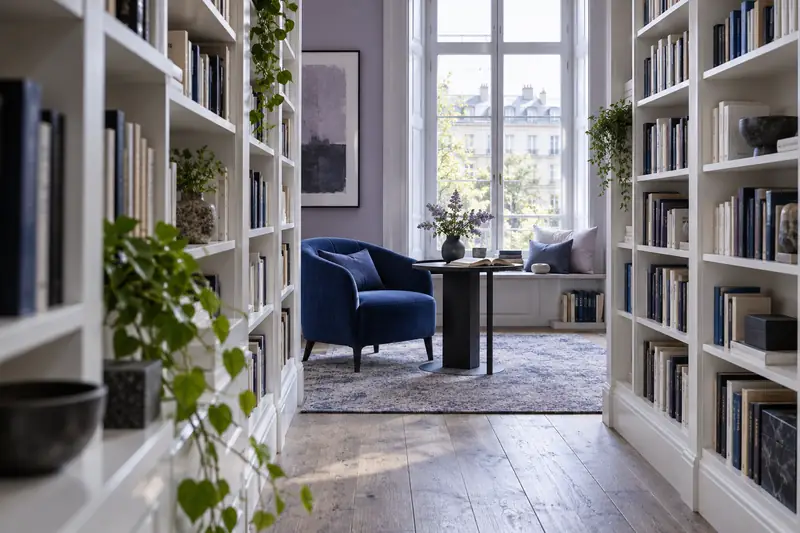
A bookshop has a good photograph of its reading room: an armchair by the window, a low table and shelving in the background. The page needs a short moving shot. Ask Veo to shoot a cosy interior and you give the model room to restage it. The task here is more modest: move a camera through the space already chosen.
In image-to-video generation, the source photo provides the starting frame. The prompt should therefore focus on what changes over time rather than describe the entire interior again. First decide what moves: the camera, a subject within the frame or the surroundings. For the first version, we will keep the interior still and request only a small push-in.
A push-in and a camera turn are different instructions
The word 'dynamic' does not define a path. In one result it might mean a sudden push-in; in another, an orbit around the room. Describe the route in ordinary spatial terms: where the camera looks from, where it moves and where it ends.
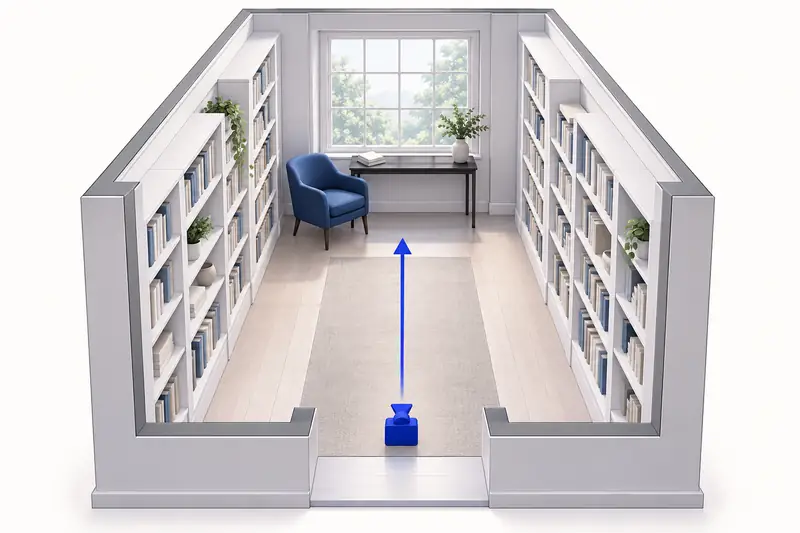
For the reading room, a slow move straight towards the armchair at eye level is a suitable starting point. A small movement keeps the window and table in view, making them useful reference points. A large sideways move or orbit would reveal parts of the room that the photograph does not show at all. The more unseen areas there are, the more unspecified details the model has to invent.
- Push-in: the camera moves towards the chosen point; the armchair gradually occupies more of the frame.
- Camera turn: the camera's viewing direction changes. This is a different movement even if its position barely changes.
- Sideways tracking move: the camera moves across the scene; nearby and distant objects should shift in relation to one another consistently.
Choose a frame you can check
Use a sharp photograph with clearly defined edges. If an armchair leg merges into a shadow, it will be difficult to tell whether its shape has survived the animation. Choose an image with clear object boundaries and keep the original file separately. In this example, the photograph was taken at eye level, so the starting viewpoint matches the intended camera move.
Check the crop for the intended video straight away. In a narrow vertical frame, the window might disappear before the movement even starts, while the table is pressed against the edge. Do not assume the model will find a good composition when you change the format. Prepare a suitable source image and reassess the space around the armchair.
- Choose one point of interest, such as the upper part of the armchair, rather than the entire room at once.
- Choose a few reference points: the window edge, a table leg and the upright edge of the shelving. You will use them when watching the video.
- For the first pass, leave out people, reflections of passers-by and any other movement unrelated to the task.
- Use an image you have the right to upload; keep a copy with the original framing.
First pass: only the camera moves
Upload the photograph in an available Veo mode that accepts a starting image. Check the attachment thumbnail: a written description does not replace the file itself. Specify the movement and the features of the scene that should remain stable. A final frame is unnecessary for this task; first generate and assess a simple push-in.
Describe the sound separately. A quiet interior does not automatically call for music or conversation. If the result has an audio track, listen to it as well: a suitable picture does not establish that the background sound works for the shop's page.
EXAMPLE PROMPT
Use the uploaded photo as the starting frame. One continuous shot: at eye level, the camera moves very slowly straight towards the armchair and comes to a gentle stop. Keep the push-in small and the whole armchair in frame. The viewing direction stays fixed. Preserve the furniture, window, shelving and lighting; all objects remain stationary. The room geometry and the shape of the armchair stay stable throughout the move. Quiet, natural room ambience, without speech or music.
Keep service settings separate from the shot brief
Choose the model version, format and available duration in the interface you are using. A long prompt will not fix an incorrectly selected mode. The YesAI forum has a detailed Veo guide with sections on camera movement and uploading a starting frame; it can help you find the relevant controls in the web version. Here, the aim is to define the movement you want and the criteria for accepting it.
Watch the middle of the clip as well as the opening
Watch the entire video, then pause near the beginning, in the middle and towards the end. A good opening frame tells you little about the quality of the movement: distortion may appear later and disappear before the stop.
Objects become larger during a push-in, so the comparison is not about identical pixels. Check that shapes and relationships hold: the table stays beside the same armchair, the shelving does not change its number of sections halfway through the move, and the window does not bend as the camera advances. A small change in scale is expected; a leg suddenly stretching is a different matter.
To distinguish a dolly-in from simply enlarging the picture, watch the nearby table and the shelving farther away: as the camera moves, their sizes change at different rates. If the entire frame just grows uniformly, first decide whether that effect suits the task. It does not establish that the intended camera move was achieved.
- Path: one clear push-in, without an unexpected orbit, camera turn or sudden jump in scale.
- Editing: the scene runs continuously, without an instant change of viewpoint that resembles a cut.
- Geometry: the straight edges of the window and shelving stay stable; parts of the armchair do not disappear or multiply.
- Object positions: furniture does not slide across the floor or swap places while the camera moves forwards.
- Frame edges: no broken outlines, objects appearing out of nowhere or gaps in the background. Do not confuse normal cropping during a push-in with distortion.
- Light and sound: no unintended flicker, voices or musical introduction.
If the room starts changing shape
Start by naming the problem precisely. 'Too cinematic' does not explain what went wrong. 'The camera orbits the armchair when I need a straight move' does. For the next version, use the same source photograph and reduce the movement. Do not add new weather, a fluttering curtain and different lighting at the same time.
If the reference details still warp during a very small push-in, try a stationary camera. That is a different version of the clip, rather than evidence that the original camera move worked. Movement in a curtain or the light can be explored as a separate setup once you know what that shot needs to do.
EXAMPLE PROMPT
Use the same source photo. The camera looks at the armchair from the original height and makes only a very short, slow move straight forwards. The viewing direction remains fixed, with no orbit around the armchair. The whole movement is one continuous shot that ends with a gentle stop. Furniture stays still, the edges of the window and shelving remain stable, and the lighting does not change. Keep the entire armchair visible. Quiet room ambience, without speech or music.
Keep the chosen movement with its source image
Before publishing, view the clip at the size and crop it will have on the page. The armchair may read well in a large file but get lost in a narrow block, while an abrupt stop may become obvious only on repeat viewing. If you need a seamless loop, assess the join between the end and the beginning separately: a smooth push-in does not create a loop by itself.
Keep the source photograph, prompt and a short note about the movement with the accepted version: 'small straight push-in; fixed viewing direction; window and furniture checked'. For the next shot of the shop, this is more useful than a vague request to 'make it look just as nice'.