WHAT IT DOES
Features
in detail.
- One source image per task
- 2K and 4K modes along the long edge
- Preserving the aspect ratio
- Processing photographs and illustrations
Measure the task first
Upscaling helps when image content is suitable but there are too few pixels for the intended medium. Check the source dimensions and planned use. A small image for a note and a large print illustration have different requirements. Follow pixel dimensions and layout requirements, not file size.
YesAI lists two Image Upscaler target modes: 2048 and 4096 pixels along the long edge. The second side is calculated in proportion to the source. If specific cropping matters, prepare it separately and assess its effect on composition.
What upscaling can change
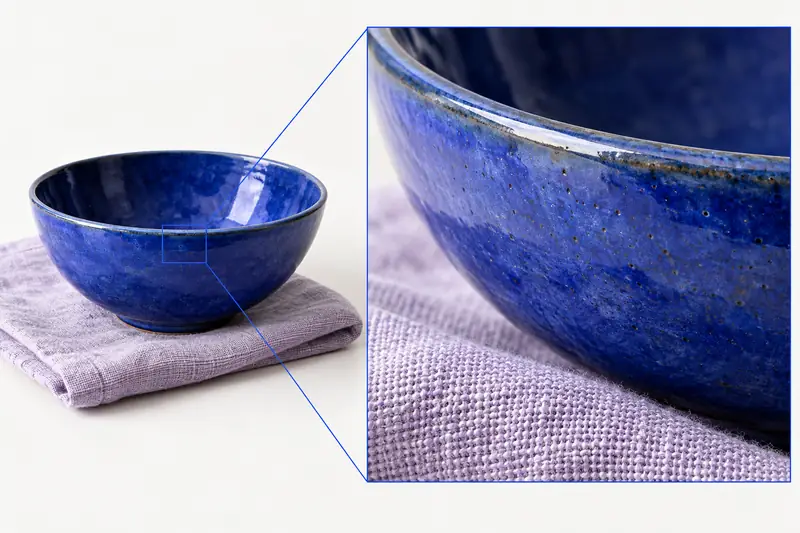
During upscaling, the model reconstructs fine elements: fabric texture, individual hairs or lettering may change. Compare heavily compressed or blurred areas particularly carefully. For product photography, inspect material texture, edges and markings, since they shape how the product is represented.
Save the source file and compare it with the result. View the whole image for the overall impression, then zoom into important areas. For a portrait, inspect eyes and facial contours; for an illustration, lines and small symbols; for packaging, type and small elements. A good overall appearance can hide local changes.
Preparing your upload
The tool page lists JPG, JPEG and PNG, one file per task. File size must be between 3KB and 20MB, with each side between 100 and 4100 pixels. If the source does not meet these conditions, prepare a suitable copy. Choose a target size above the original when your task is enlargement.
Text is not an operational input for this tool. Leave yourself a checking note here; the button opens Image Upscaler's upload form. Add the image and choose an available mode in YesAI. After processing, return to the original task: is the size sufficient, are important features intact and does the result suit the actual layout?
Suitable tasks
- Photo for a product listing
- Presentation illustration
- Preparing AI art
- Checking an image before printing
Things to consider
- JPG, JPEG and PNG files from 3KB to 20MB are accepted.
- Both source-image dimensions must fall within 100–4100 pixels.
- Fine details may change, while severe blur may remain.
- To upscale, choose a target size above the original.
FROM AN EXAMPLE TO YOUR OWN IDEA
How to prepare for processing
Prepare files for one of the workflows.
For a product listing
Prepare one product source file. Before uploading, record reference features: body texture, color, fastening shapes and marking legibility. After upscaling, compare these areas with the original.
For an illustration
Check the original size and choose a larger target long edge in YesAI. After processing, inspect fine lines and small details, then view the illustration in the actual layout.
For a portrait
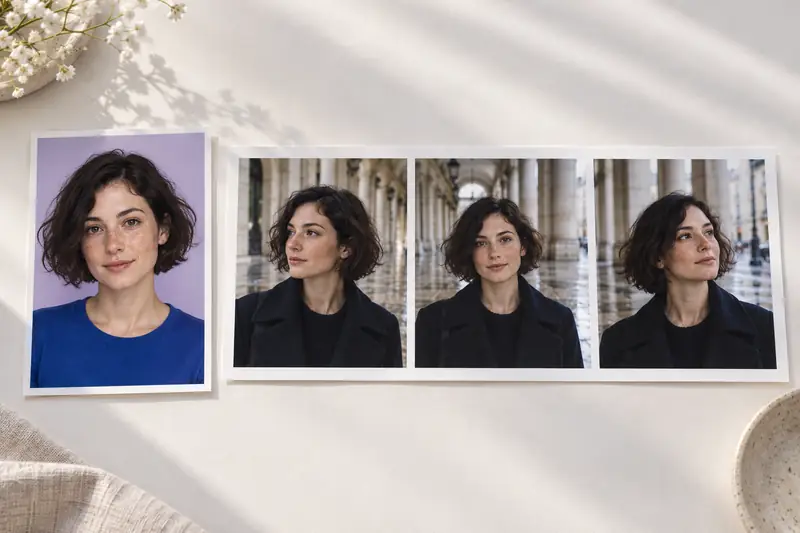
Save the original photograph. After upscaling, inspect eyes, hair, facial contour and skin texture closely, then compare the whole image's naturalness.
Workflow
- 01
Check the format, file size and image dimensions.
- 02
Open Image Upscaler, upload the image and select 2K or 4K.
- 03
Compare important details with the original and assess the result in the layout.
A FEW MORE ANSWERS
Questions about Image Upscaler
Can I create an image from a description?
Image Upscaler processes an existing image. Choose another catalog tool for text-based generation; this one requires a file upload.
What do 2K and 4K mean in this service?
In YesAI, 2K sets the long edge to 2048 pixels and 4K to 4096 pixels. The other side is calculated proportionally from the source image.
Will all lost details be restored?
The model reconstructs small elements, so texture and lettering may change while strong blur remains. Compare important areas with the original.
Will the result be suitable for printing?
Compare image dimensions with layout requirements and check at the target print size. Inspect edges, small text and texture, which may change after upscaling.